

Minimum Required Version: Expert 4.14.0.R, Guardian 4.14.0.R
This example will demonstrate how the Guardian DRC tool can be used to find layout objects that are intersecting.
1. Preliminary steps
To run this example, open a Guardian DRC session and choose File->Open to load the project “drc_ex11.eld”. Then open the top cell drc_ex11 using the Cell->Open… menu.
2. Intersection command for error detection
This command checks for intersections of region boundaries in the input layer. This is a single input layer syntax.
The syntax for this rule is:
   Intersection: Layer=  < input layer identifier >,
                 LayerR= < result layer identifier >,
                 Options = (list of check options),
                 ID = < error identifier >;
in which:
- Layer is the layer name being measured
- LayerR is the layer name in which the geometries of the layer with intersection would be saved
- Options is the list of additional option to the check
- ID is the error message that would be display and listed in the log when the error occur
This check can detect any intersection of the input layers or ONLY the self-intersection of a given layer geometries.
Figure 1, illustrates the syntax that can be used to implement this command. Two different syntaxes were implemented to illustrate the different options available.
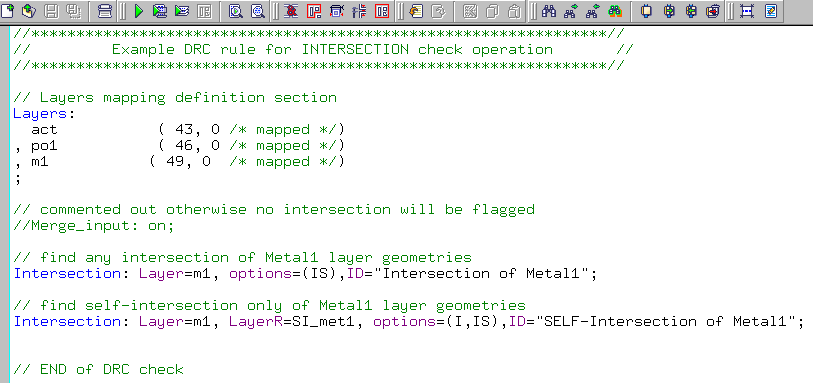
For the “Intersection” operation, the only options allowed are: S, S+, I, IS, L and L1.
A detailed description of all options can be found in the Guardian DRC user manual section 2.3.9.1: Common Syntax: Parameters and Options. Section 2.3.9.8 describes the Intersection command. The user manual “guardian_users1.pdf” can be found in lib/expert/4.14.0.R/docs/ in your installation area.
3. Experimenting with the Intersection command
Once all of the example files have been downloaded and the preliminary steps describes in 1.0 are completed, complete the following steps:
- Choose Verification->DRC->DRC Script panel. In this new window, choose File->Open… and select “intersection_01.dsf”.
- Press DRC->Run
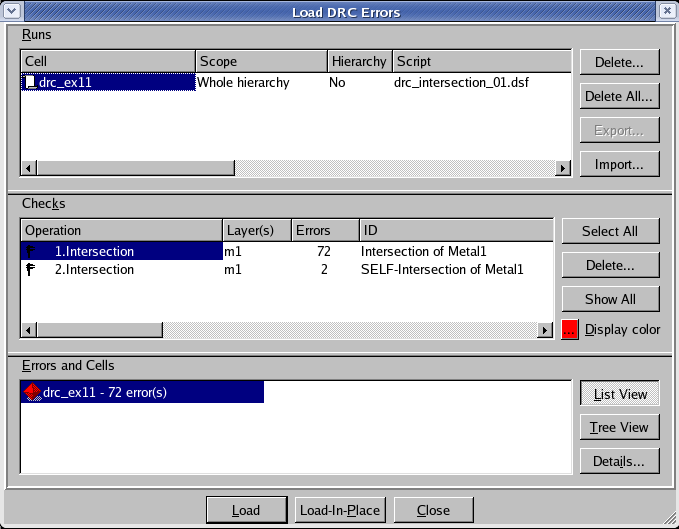
- To inspect the errors, choose Verification->DRC->Errors->Load errors… you should get a window as shown in Figure 2.
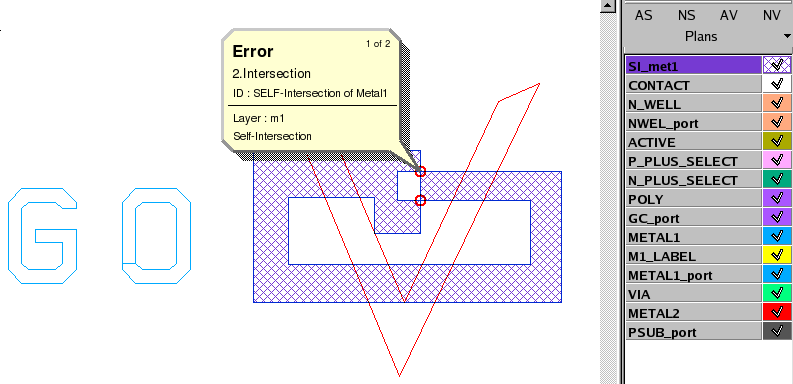
- Select the last check and press the Load button located at the bottom of the window. Then choose Verification->DRC->Errors->First error to display the error in the layout, as shown in Figure 3.
- To unload the error choose Verification->DRC->Errors->Unload errors.
- You can repeat the load error process to inspect the other intersection errors being reported.
Note that these two toolbars can be used to access the DRC menu command. To turn the visibility of the toolbar ON and OFF, choose View->Toolbars and select DRC and DRC error inspection.

Guardian DRC can also be launched from within the layout editor tool Expert. Within an Expert session follow the steps described in 1.0 to open the eld file. Then choose Verification->DRC->DRC Script panel. In this new window, choose File->Open… and select desired DRC script. The rest of the steps are identical to the Guardian DRC flow.
Output Results
Input Files
intersection_01.dsf — view contents
//****************************************************************//
//         Example DRC rule for INTERSECTION check operation       //
//****************************************************************//

// Layers mapping definition section
Layers:
  act		( 43, 0	/* mapped */)
, po1           ( 46, 0	/* mapped */)
, m1           ( 49, 0	/* mapped */)
;

// commented out otherwise no intersection will be flagged
//Merge_input: on;

// find any intersection of Metal1 layer geometries
Intersection: Layer=m1, options=(IS),ID="Intersection of Metal1";

// find self-intersection only of Metal1 layer geometries
Intersection: Layer=m1, LayerR=SI_met1, options=(I,IS),ID="SELF-Intersection of Metal1";


// END of DRC check