

Minimum Required Version
: Expert 4.14.0.R, Guardian 4.14.0.R
This example will demonstrate how the Guardian DRC tool can be used to resize layout objects, more specifically, oversize them.
1. Preliminary steps
In order to run this example the user needs to open a Guardian DRC session and choose
File->Open
to load the project
“drc_ex18.eld”
. Then open the top cell
drc_ex18
using the
Cell->Open…
menu.
2. Oversize command description
This command creates a new layer by resizing the regions of the input layer. When a region is oversized, its edges are shifted outside the
region by a specified distance(s), while remaining parallel to their initial orientations.
This command is mostly used in combination with other commands to perform a more complex Design Rule Check.
One rule, for which the
Oversize
command is often use, is the detection of large Metal. For example, the metal geometries can first be undersize to ensure that any geometries
less than the width of the large metal would disappear. An oversize operation of the same value can be performed on the remaining metal,
effectively keeping only the metal above a certain size (large metal).
The syntax for this rule is:
   Oversize: Value = < value >,
             Layer = < input layer identifier >,
             LayerR= < output layer identifier >;
in which:
-
Layer
is the layer name being oversized -
Value
is the distance in um of the oversized operation -
LayerR
is the layer name in which the enlarged geometries of layer would be saved
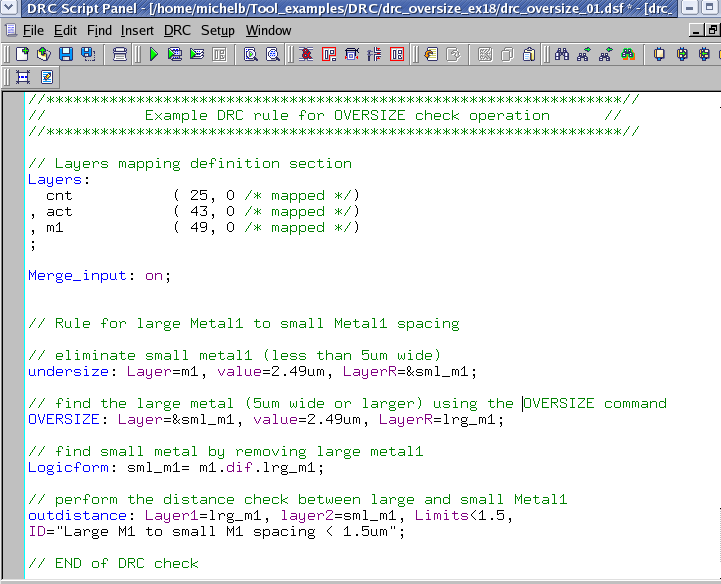
In
Figure 1,
the
Oversized
command is used in order to find large Metal1 and check the
outdistance
(spacing) rule between small metal1 and large metal1.
The user manual
“guardian_users1.pdf”
can be found in
lib/expert/4.14.0.R/docs/
in your installation area. Section 2.3.9.8 describes the Oversize command.
3. Experimenting with the Oversize command
Once all the example files have been downloaded and the preliminary steps described in 1.0 are completed,
complete the following steps:
- Choose
Verification->DRC->DRC Script panel
. In this new window, choose
File->Open…
and select
“drc_oversize_01.dsf”.
- Press
DRC->Run
- To inspect the errors, choose
Verification->DRC->Errors->Load errors…
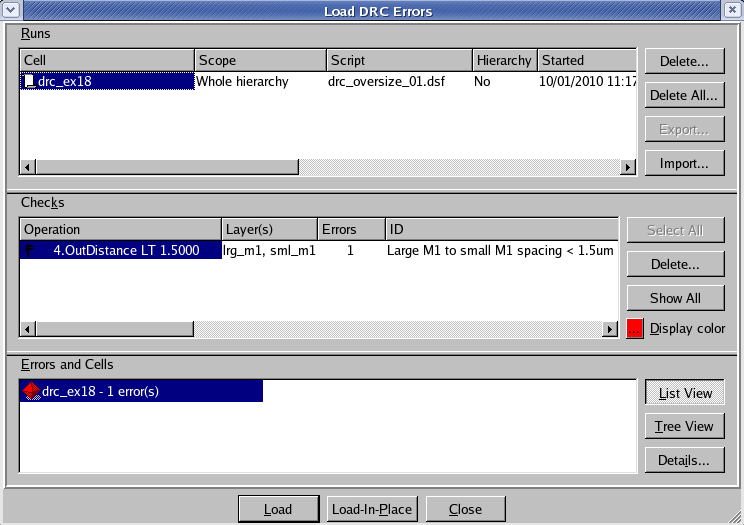
you should get a window as shown in
Figure 2. - Select the check and press the
Load
button located at the bottom of the window. Then choose
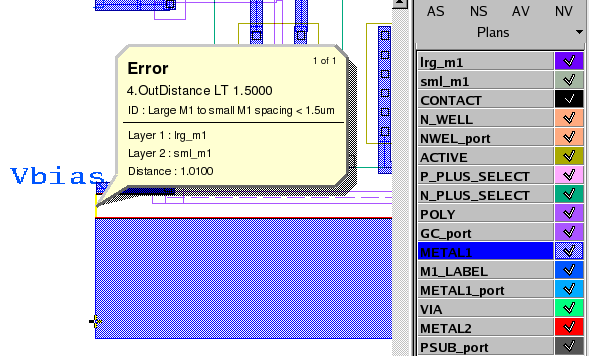
Verification->DRC->Errors->First error
to display the error in the layout, as shown in
Figure 3
. - To unload the error choose
Verification->DRC->Errors->Unload errors
.
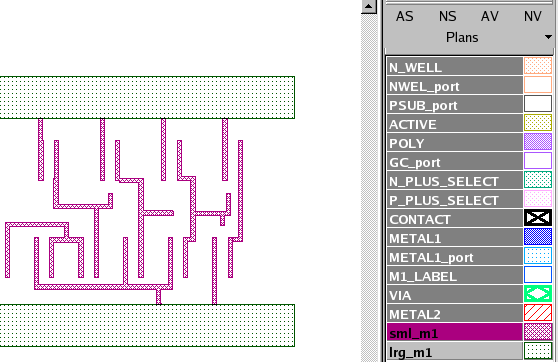
This DRC rule deck also writes back to the layout two scratch layers;
sml_m1
and
lrg_m1
, as shown in
Figure 4.
Note these two
toolbars
can be used to access the DRC menu command. To turn the visibility of the toolbar ON and OFF, choose
View->Toolbars
and select
DRC
and
DRC error inspection.
That Guardian DRC can also be launched from within the Expert layout editor. Within an Expert
session follow the steps described in 1.0 to open the eld file. Then choose
Verification->DRC->DRC Script panel.
In this new window, choose
File->Open…
and select desired DRC script. The rest of the steps are identical to the Guardian DRC flow.
Output Results

Input Files
drc_oversize_01.dsf
//****************************************************************//
//           Example DRC rule for OVERSIZE check operation      //
//****************************************************************//

// Layers mapping definition section
Layers:
  cnt		( 25, 0	/* mapped */)
, act		( 43, 0	/* mapped */)
, m1            ( 49, 0	/* mapped */)
;

Merge_input: on;


// Rule for large Metal1 to small Metal1 spacing

// eliminate small metal1 (less than 5um wide)
undersize: Layer=m1, value=2.49um, LayerR=&sml_m1;

// find the large metal (5um wide or larger) using the OVERSIZE command
OVERSIZE: Layer=&sml_m1, value=2.49um, LayerR=lrg_m1;

// find small metal by removing large metal1
Logicform: sml_m1= m1.dif.lrg_m1;

// perform the distance check between large and small Metal1
outdistance: Layer1=lrg_m1, layer2=sml_m1, Limits<1.5,
ID="Large M1 to small M1 spacing < 1.5um";

// END of DRC check