

Minimum Required Version
: Expert 4.14.0.R, Guardian 4.14.0.R
Guardian DRC contains a SELECT statement that can be used to identify layout objects for a particular design rule check.
The SELECT statement has many different forms; each signified by different relational options. In this example,
the ENCLOSE relational option is demonstrated with the SELECT operation.
Loading the Example Circuit and DRC Script
Open Expert, load the example circuit in the Expert project select_enclose.eld, and open the sample layout cell named
DFF.
This sample layout contains a D-Flip Flop circuit which will be used to show the operation of the SELECT command
with the ENCLOSE option. Next, the DRC script containing the appropriate rule set must be loaded by selecting
the Expert menu
Verification->DRC->DRC Script Panel.
From the script panel, select
File->Open
and browse to the DRC rule set for this example, named
select_enclose.dsf.
Syntax
The syntax for the SELECT command with relation=ENCLOSE can be seen in the example DRC script:
   SELECT: Relation=ENCLOSE,
          [Options=([C][,NOT][,Nodes  < range >]
                             [,Shapes < range >]),]
           Layer1=< layer1 identifier >,
           Layer2=< layer2 identifier >,
           LayerR=< result layer identifier >;
This command creates shapes on LayerR of Layer1 that enclose a region from Layer2. Using the options
Nodes
or
Shapes
with a specified range will only select Layer1 shapes that match that range condition. For example:
Options=(Shapes > 2)
will select any Layer1 region that encloses more than 2 Layer2 regions. Another option setting shown above is
Options=(C)
, in which the selection operation will be based on electrical connectivity information. Using
Options=(NOT)
will perform the selection operation if the conditions of the select command are not met.
In this example the SELECT command with relation=ENCLOSE is used to find any N_WELL regions with no N+ well tap.
First the scratch layers “nactive” and “ntap” are created. Then the scratch layer “nwell_no_tap” is created by the
Select: Relation=ENCLOSE, Options=(NOT)
command which identifies any region of “N_WELL” that does not enclose an “ntap” shape. The resulting geometry is flagged
as an error in the error database by using the
COPY
command, which will copy the “nwell_no_tap” shape to
ID=”text”
, which contains the rule name or description.
The “nwell_no_tap” scratch layer, along with other scratch layers generated by the Guardian commands, are written back to
the layout in this example deck. To prevent any scratch layers from being written to the layout, the command:
update_layout:new=yes;
can be changed to
update_layout:new=no.
DRC Output
To run the example DRC script, select the menu item
DRC->Run
from the DRC script panel with the
select_enclose.dsf
script loaded. Once the DRC is complete, return to the Expert window containing the layout and select
Verification->DRC->Errors->Load Errors.
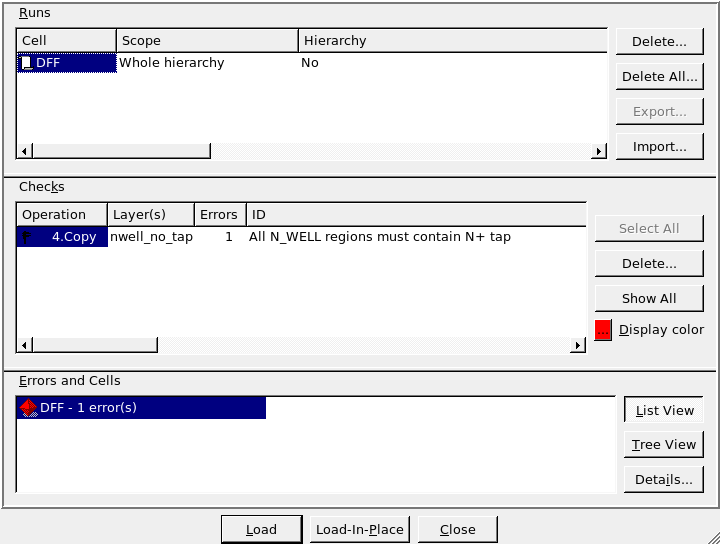
This will open the error window containing all errors found by the DRC script. As seen in
Figure1
, there is one error for an Nwell with no well tap.
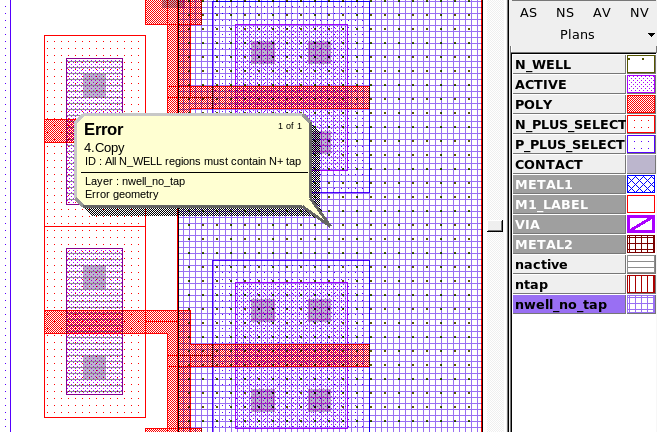
By selecting the first error and clicking on the “Load” button in the error window and selecting the Expert menu item
Verification->DRC->Errors->First Error
the layout view will be taken to the first violation as seen in
Figure2
, which shows the Nwell region without an N+ active tap region.
Output Results
Input Files
select_enclose.dsf
/////////////////////////////////////
//       EXAMPLE DRC SCRIPT        //
/////////////////////////////////////
Layers:
    N_WELL		(42, 0)
,   ACTIVE		(43, 0)
,   P_PLUS_SELECT	(44, 0)
,   N_PLUS_SELECT	(45, 0)
,   POLY		(46, 0)
,   METAL1		(49, 0)
,   VIA			(50, 0)
,   METAL2		(51, 0)
;
update_layout:new=yes;


//Create "nactive" layer
And: Layer1=ACTIVE, Layer2=N_PLUS_SELECT, LayerR=nactive;

//Create "ntap" layer
Select: Relation=INSIDE, Layer1=nactive, Layer2=N_WELL, LayerR=ntap;

//Create "nwell_no_tap" layer
Select: Relation=ENCLOSE, Options=(NOT), Layer1=N_WELL, Layer2=ntap, LayerR=nwell_no_tap;

//Flag error for any nwell with no N+ tap region
Copy: Layer=nwell_no_tap, ID="All N_WELL regions must contain N+ tap";