

Minimum Required Version
: Expert 4.14.0.R, Guardian 4.14.0.R
This example demonstrates how a Boolean
AND
function operates on two or more overlapping layers of the same layer. The
AND
logical operator is typically used in Guardian DRC or Guardian LVS to generate additional (derived) layers that will be used in other operations. For example, transistor gate regions are not drawn, but can be created using a simple
AND operation (see example and_ex01).
1. Preliminary steps
To run this example, open a Guardian DRC session and choose
File->Open
to load the project
“drc_and_ex02.eld”
. Then in the Open Cell(s) form that pops up, select
“drc_and_ex02”
and select
“OK”.
2. Boolean AND using a range modifier
All DRC foundry rule files require layers to be manipulated in order to perform various checks. Therefore, rule developers need a method to create or derive new and temporary layers. The
AND
operator can be used when developers need to generate a new shape when multiple layers overlap. A simple
AND
function returns the union between two layers. If more than two layers are needed to form the shape, a range modifier is needed.
The cell
“drc_and_ex02”
provided in the
“drc_and_ex02.eld”
project is based on the
AND
illustration shown in Figure 2-19 of the Guardian User Manual. Additional shapes were added to create a more robust example.
Figure 1
illustrates how to use the
AND
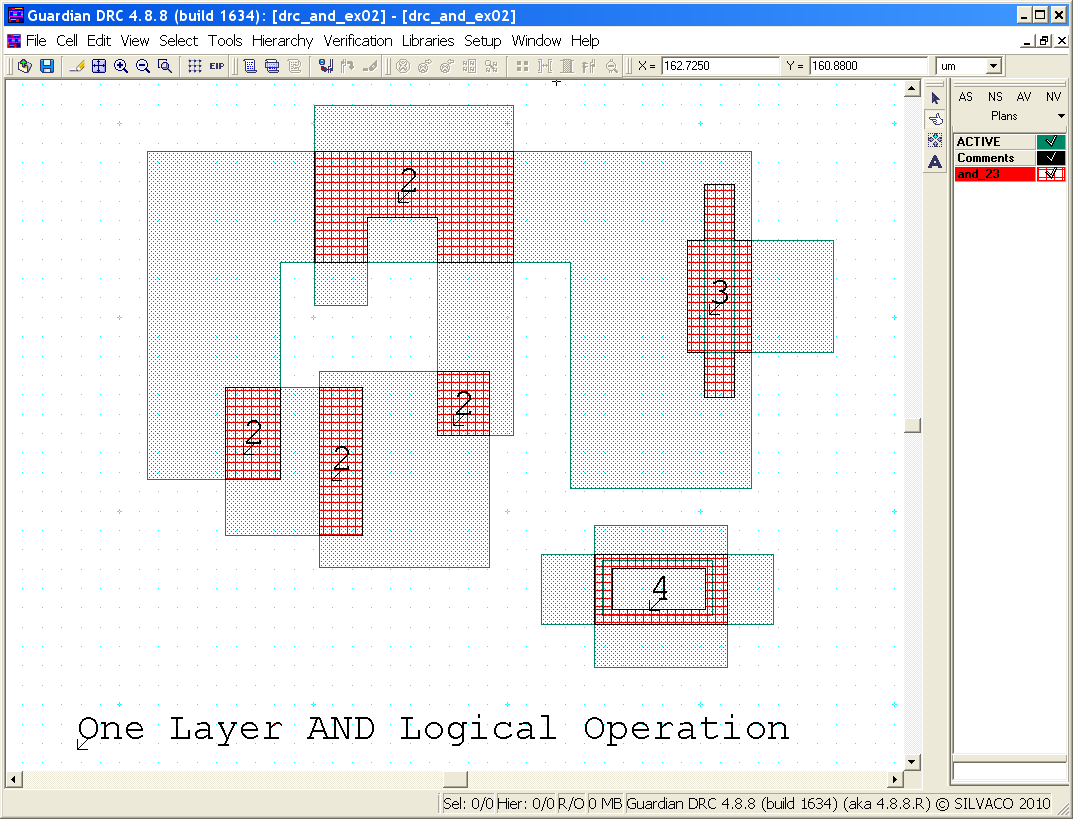
operator with a range modifier to generate new shapes when two or more polygons intersect. The example uses the ACTIVE layer to create a new layer called “and_23” whenever two or three ACTIVE shapes overlap.
3. Experimenting with Boolean AND function
Once all the example files have been downloaded and the preliminary steps described in section 1.0 are completed, complete the following steps:
- Choose
Verification->DRC->DRC Script panel
.
In the new window, choose
File->Open…
and select
“drc_and_ex02.dsf”.
- In the same window, choose
Setup->Current DRC script run preferences
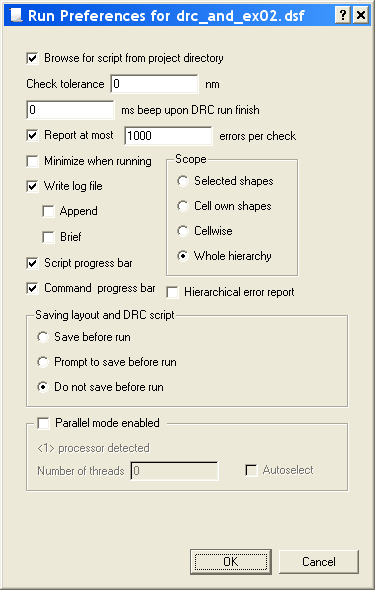
… and set the options as shown in
Figure 2
. - Accept the changes and press
DRC->Run
- To inspect the errors, choose
Verification->DRC->Errors->Load errors…
from the Guardian DRC window. Select the recent DRC results, and press the
Load
button located at the bottom of the window. - Use
Verification->DRC->Errors->First error
to display the error in the layout, as shown in
Figure 3.
Notes: Text was added to identify the number of overlapping shapes in the various locations. In the case where four shapes overlap, the AND operator only generates a region where two and three shapes intersected because the range modifier specifies “2:3”. Therefore, a hole was generated where the fourth layer intersected with the other shapes.
- To unload the error choose
Verification->DRC->Errors->Unload errors
To learn more about Guardian DRC, the different commands and their syntax, as well as the different setup options, see the Guardian DRC user manual “guardian_users1.pdf” located in lib/expert/4.14.0.R/docs/ in your installation area.
Output Results

Input Files
drc_and_ex02.dsf
//********************************************************************//
// Example DRC rules for Boolean AND operation using a range modifier //
//********************************************************************//

// Example 1: AND operation using shapes of the same layer
AND : Layer=ACTIVE, type=range, value = 2:3, LayerR=and_23;
Copy : Layer=and_23, ID="Region created using Boolean AND operation";

// END of DRC check